Fit entire image
Keep the whole image visible. Any unused canvas area remains transparent in the pixel result.
PHOTO TO PIXEL ART · IN YOUR BROWSER
Convert a photo, illustration, or sprite into pixel art in your browser. Adjust pixel size, colors, and dithering, compare before and after, then export a static PNG or WebP.
Choose an image
Drop a PNG, JPG, WebP, or GIF here, or browse files.
Your image is processed in this browser and is not uploaded.
Choose an image to start.
Save a pixel-sized or enlarged PNG or WebP. Transparent areas are preserved.
A SIMPLE WORKFLOW
Portraits, illustrations, and sprites work well. A clear subject is easier to recognize on a small pixel grid. Open a PNG, JPG, WebP, or GIF; animated GIFs use the first frame only.
Adjust the pixel grid for more detail or a chunkier look. For an exact square result, choose a 16 × 16, 32 × 32, or 64 × 64 canvas and set how the image fits.
Drag the Before/After divider to inspect the same area, then save a pixel-size or enlarged PNG or WebP.
PHOTO TO PIXEL ART
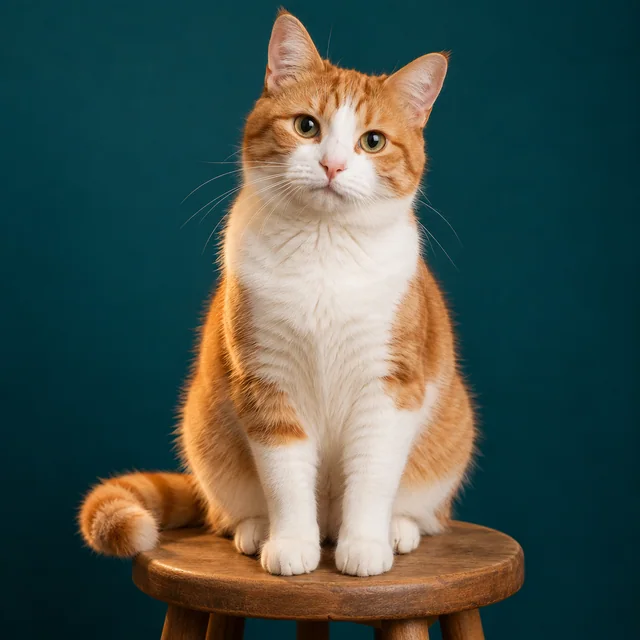
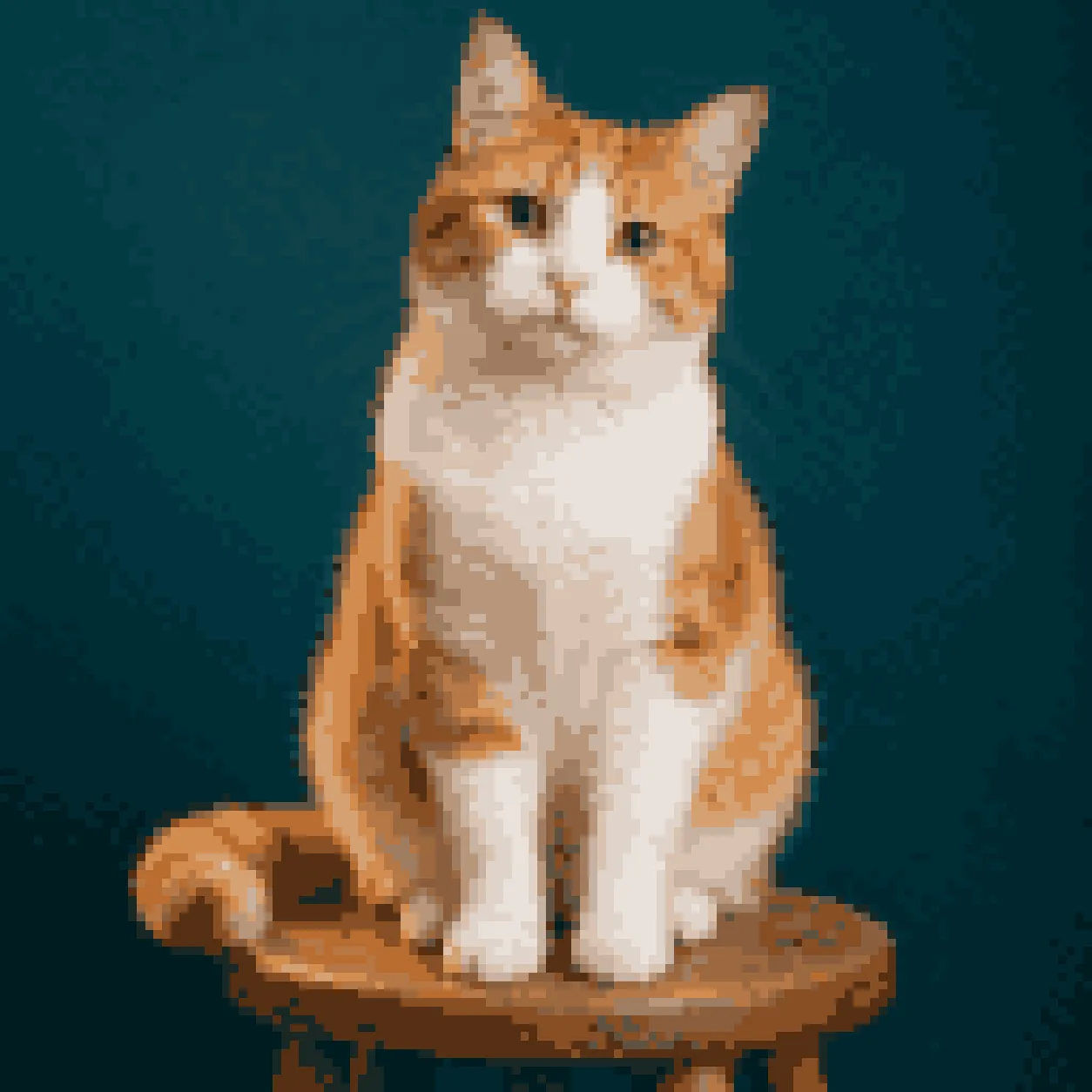
Here is an example of the same orange-and-white cat before and after conversion. The original photo becomes a compact pixel-art portrait with simplified colors and shapes.
FIXED CANVAS
Choose a fixed square canvas for a small sprite or icon. Both fit modes preserve the source proportions; they differ in whether they keep the full image or fill the canvas.
Keep the whole image visible. Any unused canvas area remains transparent in the pixel result.
Fill the target canvas and crop the excess from the center.
MADE FOR PIXEL DETAIL
Start with the pixel grid, then shape the colors and texture. Compare settings in the preview as you work.
More pixels preserve finer shapes; fewer pixels create a chunkier look. Adjust the grid until the subject reads clearly.
Keep the source colors, reduce the color count, enter custom colors, or try the Game Boy and PICO-8 palettes.
Compare no dithering with Floyd–Steinberg, Atkinson, or Bayer patterns to see which treatment suits the image.
Adjust image tone before conversion to bring out a subject or soften strong colors.
BROWSER PROCESSING
The converter uses browser image and canvas APIs to process the selected image and create export files. Read the privacy policy for details about image handling.
QUICK ANSWERS
Choose an image and adjust the pixel grid to set its level of detail. Change the colors with a palette or dithering, compare the result with the original, then export a pixel-size or enlarged PNG or WebP.
Upload PNG, JPG/JPEG, WebP, or GIF. Animated GIFs are accepted, but only the first frame is converted and the result is a static image.
The converter decodes and converts frame 0 only. It does not process the remaining animation frames, and exports a static PNG or WebP.
There is no single best size for every image. Choose 16 × 16, 32 × 32, or 64 × 64 for a fixed square canvas; choose Keep image proportions to adjust pixel width for a non-square result. Use the preview to decide how much detail to keep.
Use a smaller color count for a simpler palette, then increase it if important shapes or shading disappear. The Limit colors control supports 2–32 colors; Game Boy and PICO-8 palettes are also available.
Yes. Choose Floyd–Steinberg, Atkinson, 2 × 2 Bayer, or 4 × 4 Bayer, or set dithering to None. Compare the patterns in the preview to see which one suits your image.
Start with a clear subject, strong contrast, and a simple background. Those shapes are easier to read when the image is reduced to a small pixel grid.
Yes. Select the 16 × 16 canvas preset and export at Pixel size for an image that is exactly 16 pixels wide and 16 pixels high. The enlarged export scales it to 64 × 64 with nearest-neighbor rendering.
Choose Fit entire image to keep the full source visible; unused canvas areas remain transparent. Choose Crop to fill to cover the canvas, then crop the excess from the center.
Yes. Fit entire image leaves unused canvas pixels transparent, and PNG or WebP exports preserve that transparency.
No. PixelArt Converter transforms an image you provide using pixel size, palette, dithering, and tone controls. It does not generate a new image from a text prompt.
READY WHEN YOU ARE
Start with the converter above and adjust the result at your own pace.